Week 3 HW Exercises

Hey guys!

This week’s homework was definitely a challenge for me. The exercises went well up until the part where I had to create my own sketch. At this point it seems like there might be technical difficulties with my board or faulty wiring, since I still can’t get it to work after many hours. Here’s the latest iteration of my code to control an LED with 2 buttons (ON/OFF) and a picture of my circuit board.

// constants won't change. They're used here to set pin numbers:
const int button1 = 5; // the number of the 1st button pin for on
const int button2 = 3; // number of 2nd button pin for off
const int ledPin = 13; // the number of the LED pin

// variables will change:
int button1State = 0; // variable for reading the pushbutton status
int button2State = 0; // variable for button 2 state

void setup() {
// initialize the LED pin as an output:
pinMode(ledPin, OUTPUT);
// initialize button 1 pin as an input:
pinMode(button1, INPUT_PULLUP);
//initilize button 2 as an input
pinMode(button2, INPUT_PULLUP);
}

void loop() {
// read the state of the button 1 value:
button1State = digitalRead(button1);
//read state of button 2 value:
button2State = digitalRead(button2);

// check if button 1 is pressed. If it is, the button1State is HIGH and button2state is low:
if (button1State == LOW) {
// turn LED on:
digitalWrite(ledPin, HIGH);
}

//check if button 2 is pressed;

if (button2State == LOW) {
//turn LED off:
digitalWrite(ledPin, LOW);
}
}

IMG_5979

Here’s the instagram link for the digital input and serial monitor lessons.

https://www.instagram.com/p/BoKzp-WApnu/?utm_source=ig_web_copy_link

Thanks!

Catherine

The Blinky Lights (a.k.a. Week 2 HW)

Super excited that we got to start exploring Arduino this week. The coding frustration will come later, but for now it’s just fun to make some lights blink. 🙂

Instagram post:

https://www.instagram.com/p/BnuOYYRl16j/?utm_source=ig_web_button_share_sheet

All exercise videos are bundled into one post. 1st video is the “Add more LEDs” exercise. 2nd video is the “Fade” exercise. 3rd video is the “RGB LEDs” exercise Part 1. 4th video is the “RGB LEDs” exercise Part 2.

Enjoy!

Catherine

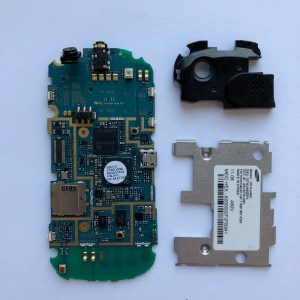
Samsung Intensity II Teardown

Project 1 Knolling_back_labelled

Project 1 Knolling_front labelled.jpg

Components:

  • A. Back casing with camera cover – injection mold plastic
  • B. Slider mechanism plate – metal and plastic
  • C. Back casing/battery cover – injection molded plastic
  • D. Screws – metal
  • E. 3.7 volt Lithium ion battery
  • F. Front Speaker and flex cable
  • G. Front side buttons – injection molded plastic
  • H. Front cover and LCD protector
  • I. LCD connector and flex cable
  • J. Front number keyboard circuit board
  • K. Front number keyboard buttons – plastic
  • L. Back speaker and camera module, also housing audio jack – IMP for module case
  • M. Slider mechanism base plate – metal
  • N. Screws – metal
  • O. Screws – metal
  • P. Screws – metal
  • Q. EMI Shield – metal
  • R. Screws – metal
  • S. Back Plate of front half – IMP
  • T. QWERTY keyboard circuit
  • U. QWERTY keyboard buttons – plastic
  • V. “Front” casing for back half housing QWERTY keyboard
  • W. LCD display
  • X. Rear camera
  • Y. Sim card space?

How to breakdown:

Tools Used: screw driver, tweezers, x-acto knife, hair dryer, phillips head, my nails 😛

Techniques: unscrewing, heating up, and prying, lots of prying

Step 1:Remove back casing and detach logic board

IMG_5835.jpg

IMG_5840.jpgIMG_5843 IMG_5844

Step 2: Open up the front half of the phone, starting with the sliding mechanism side, and remove LCD panel and front keyboard circuit from front casing.

IMG_5847  IMG_5849 IMG_5849 3

Step 3: Detach LCD connector and remove EMI shield and speaker module with camera/audio jack from logic board.

IMG_5856IMG_5873IMG_5865

Two design elements I found interesting:

  1. The slider, the sliding mechanism, and the holes in parts of the casing are positioned in such a way to accommodate the LCD connection. Prior to taking it apart, I had no idea how that worked, so it was exciting to discover during the teardown!
  2. I like the difference in texture between the back plate covering the battery and the rest of the phone. While the rest of the purple plastic in the case is smooth, the back has a more raised texture. I think this was done for better grip when the user is holding the phone and to distinguish the part that can be removed to access the battery.

Hey y’all, it’s Catherine

IMG_4879

Hi there, my name’s Catherine Stoddard, and I’m excited to learn more about making!

I grew up in a multicultural household in Atlanta (my mom is Chinese and my dad is caucasian). For undergrad, I studied Japanese Language and Literature with a minor in Visual Arts. Wanting to find work where I could tangibly help people, I ended up working at a clinical research site helping run psychiatric medication trials for 5 years. In my spare time, I enjoy picking up different creative hobbies, such as modular origami, calligraphy, crocheting, and paper craft. I’m pursuing an MFA at SVA in Products of Design to combine creativity, analysis, and a desire to aid humanity in a more fulfilling career.

Website: https://www.behance.net/catstoddar66ec