I selected a jellyfish as the theme for my Halloween costume because I’m captivated by the way they emit a radiant glow beneath the water. The graceful, fluid motions of jellyfish and their mesmerizing luminescence never fail to amaze me. My aim was to replicate the enchanting movement and natural radiance of jellyfish using Arduino programming, and I’m thrilled to say that I successfully achieved my goal.
Photos from the start to the parade!
A significant amount of soldering work for the arms and tentacles of my jellyfish project.
Creating the head components using a chef’s hat, cotton materials, and a transparent tablecloth.
Incorporating the programmed LED strips into the fabric arms and securing their attachment to the head component.
Final looks of the costume itself.
Final final looks of my jellyfish costume on me during the parade!
Family photo 🙂
Circuit diagram
Materials
As for the materials, I utilized ruffled lace organza and braided yarns for the arm/tentacle sections, while the head component was constructed from a chef’s hat, cotton, and clear tablecloth.
// Simple demonstration on using an input device to trigger changes on your
// NeoPixels. Wire a momentary push button to connect from ground to a
// digital IO pin. When the button is pressed it will change to a new pixel
// animation. Initial state has all pixels off -- press the button once to
// start the first animation. As written, the button does not interrupt an
// animation in-progress, it works only when idle.

#include <Adafruit_NeoPixel.h>
#ifdef __AVR__
 #include <avr/power.h> // Required for 16 MHz Adafruit Trinket
#endif

// Digital IO pin connected to the button. This will be driven with a
// pull-up resistor so the switch pulls the pin to ground momentarily.
// On a high -> low transition the button press logic will execute.
#define BUTTON_PIN   2

#define PIXEL_PIN    6  // Digital IO pin connected to the NeoPixels.

#define PIXEL_COUNT 120  // Number of NeoPixels

// Declare our NeoPixel strip object:
Adafruit_NeoPixel strip(PIXEL_COUNT, PIXEL_PIN, NEO_GRB + NEO_KHZ800);
// Argument 1 = Number of pixels in NeoPixel strip
// Argument 2 = Arduino pin number (most are valid)
// Argument 3 = Pixel type flags, add together as needed:
//   NEO_KHZ800  800 KHz bitstream (most NeoPixel products w/WS2812 LEDs)
//   NEO_KHZ400  400 KHz (classic 'v1' (not v2) FLORA pixels, WS2811 drivers)
//   NEO_GRB     Pixels are wired for GRB bitstream (most NeoPixel products)
//   NEO_RGB     Pixels are wired for RGB bitstream (v1 FLORA pixels, not v2)
//   NEO_RGBW    Pixels are wired for RGBW bitstream (NeoPixel RGBW products)

boolean oldState = HIGH;
int     mode     = 0;    // Currently-active animation mode, 0-9

void setup() {
  Serial.begin(9600);
  pinMode(BUTTON_PIN, INPUT_PULLUP);
  strip.begin(); // Initialize NeoPixel strip object (REQUIRED)
  strip.show();  // Initialize all pixels to 'off'
}

void loop() {
  // Get current button state.
  boolean newState = digitalRead(BUTTON_PIN);

  // Check if state changed from high to low (button press).
  if((newState == LOW) && (oldState == HIGH)) {
    // Short delay to debounce button.
    delay(20);
    // Check if button is still low after debounce.
    newState = digitalRead(BUTTON_PIN);
    if(newState == LOW) {      // Yes, still low
      if(++mode > 8) mode = 0; // Advance to next mode, wrap around after #8
      switch(mode) {           // Start the new animation...
        case 0:
          colorWipe(strip.Color(  0,   0,   0), 50);    // Black/off
          break;
        case 1:
          colorWipe(strip.Color(255,   0,   0), 50);    // Red
          break;
        case 2:
          colorWipe(strip.Color(  0, 255,   0), 50);    // Green
          break;
             case 3:
          colorWipe(strip.Color(  0,   0, 255), 50);    // Blue
          break;
        case 4:
          theaterChase(strip.Color(127, 127, 127), 50); // White
          break;
        case 5:
          theaterChase(strip.Color(127,   0,   0), 50); // Red
          break;
        case 6:
          theaterChase(strip.Color(  0,   0, 127), 50); // Blue
          break;
        case 7:
          rainbow(10);
          break;
        case 8:
          theaterChaseRainbow(50);
          break;

      }
    }
  }

  // Set the last-read button state to the old state.
  oldState = newState;
}

// Fill strip pixels one after another with a color. Strip is NOT cleared
// first; anything there will be covered pixel by pixel. Pass in color
// (as a single 'packed' 32-bit value, which you can get by calling
// strip.Color(red, green, blue) as shown in the loop() function above),
// and a delay time (in milliseconds) between pixels.
void colorWipe(uint32_t color, int wait) {
  for(int i=0; i<strip.numPixels(); i++) { // For each pixel in strip...
    strip.setPixelColor(i, color);         //  Set pixel's color (in RAM)
    strip.show();                          //  Update strip to match
    delay(wait);                           //  Pause for a moment
  }
}

// Theater-marquee-style chasing lights. Pass in a color (32-bit value,
// a la strip.Color(r,g,b) as mentioned above), and a delay time (in ms)
// between frames.
void theaterChase(uint32_t color, int wait) {
  for(int a=0; a<10; a++) {  // Repeat 10 times...
    for(int b=0; b<3; b++) { //  'b' counts from 0 to 2...
      strip.clear();         //   Set all pixels in RAM to 0 (off)
      // 'c' counts up from 'b' to end of strip in steps of 3...
      for(int c=b; c<strip.numPixels(); c += 3) {
        strip.setPixelColor(c, color); // Set pixel 'c' to value 'color'
      }
      strip.show(); // Update strip with new contents
      delay(wait);  // Pause for a moment
    }
  }
}

// Rainbow cycle along whole strip. Pass delay time (in ms) between frames.
void rainbow(int wait) {
  // Hue of first pixel runs 3 complete loops through the color wheel.
  // Color wheel has a range of 65536 but it's OK if we roll over, so
  // just count from 0 to 3*65536. Adding 256 to firstPixelHue each time
  // means we'll make 3*65536/256 = 768 passes through this outer loop:
  for(long firstPixelHue = 0; firstPixelHue < 3*65536; firstPixelHue += 256) {
    for(int i=0; i<strip.numPixels(); i++) { // For each pixel in strip...
      // Offset pixel hue by an amount to make one full revolution of the
      // color wheel (range of 65536) along the length of the strip
      // (strip.numPixels() steps):
      int pixelHue = firstPixelHue + (i * 65536L / strip.numPixels());
      // strip.ColorHSV() can take 1 or 3 arguments: a hue (0 to 65535) or
      // optionally add saturation and value (brightness) (each 0 to 255).
      // Here we're using just the single-argument hue variant. The result
      // is passed through strip.gamma32() to provide 'truer' colors
      // before assigning to each pixel:
      strip.setPixelColor(i, strip.gamma32(strip.ColorHSV(pixelHue)));
    }
    strip.show(); // Update strip with new contents
    delay(wait);  // Pause for a moment
  }
}

// Rainbow-enhanced theater marquee. Pass delay time (in ms) between frames.
void theaterChaseRainbow(int wait) {
  int firstPixelHue = 0;     // First pixel starts at red (hue 0)
  for(int a=0; a<30; a++) {  // Repeat 30 times...
    for(int b=0; b<3; b++) { //  'b' counts from 0 to 2...
      strip.clear();         //   Set all pixels in RAM to 0 (off)
      // 'c' counts up from 'b' to end of strip in increments of 3...
      for(int c=b; c<strip.numPixels(); c += 3) {
        // hue of pixel 'c' is offset by an amount to make one full
        // revolution of the color wheel (range 65536) along the length
        // of the strip (strip.numPixels() steps):
        int      hue   = firstPixelHue + c * 65536L / strip.numPixels();
        uint32_t color = strip.gamma32(strip.ColorHSV(hue)); // hue -> RGB
        strip.setPixelColor(c, color); // Set pixel 'c' to value 'color'
      }
      strip.show();                // Update strip with new contents
      delay(wait);                 // Pause for a moment
      firstPixelHue += 65536 / 90; // One cycle of color wheel over 90 frames
    }
  }
}
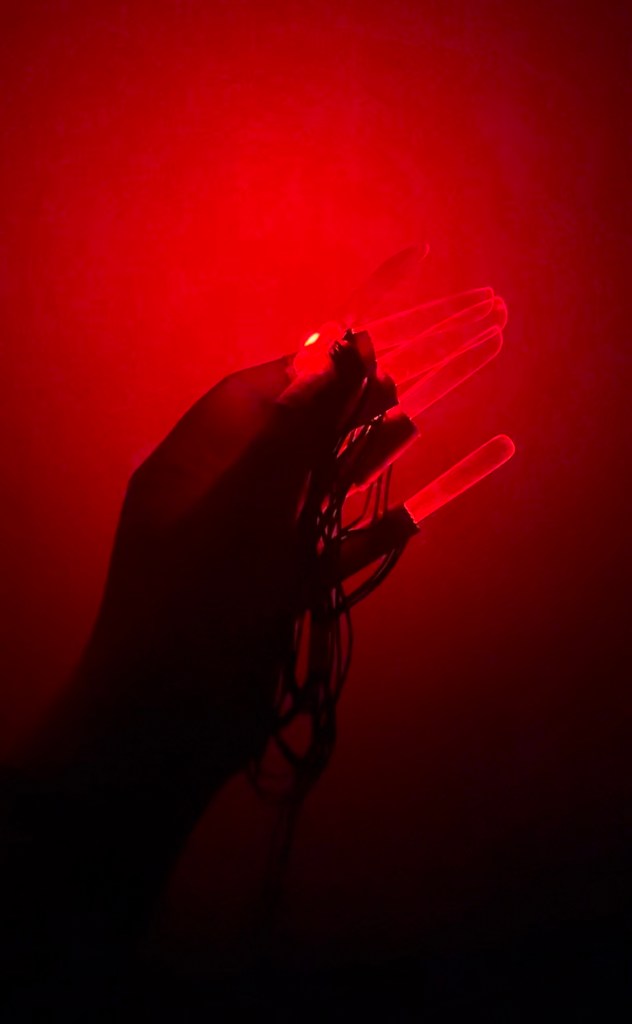
I made red nails that can “breathe”. Their light can change from dark to light and back again. I made these nails because I thought it would be fun to go out on Halloween wearing glowing red nails. I thought these finger covers are really easy to wear. During the process of making this project, I learned that LED lights easily broken and it is better to keep a few extra LED lights on hand for this type of project. If I were to recreate the project, I would like to make things that can use light strips, such as making lighted gloves. It took me a lot more time than I thought it would because the LEDs broke so often.
Growing up I really enjoyed Alice in Wonderland, I love the curiosity the variety of characters and all the motifs within the story. As I progressed from reading the fairytale to watching the movie adaptation I became increasingly interested in the symbolism behind the white rabbit character. His anxiety of time fleeing was very relatable to myself growing up and today. Through this I was inspired to create the clock accessory which he is always carrying around.
White Rabbit from original children’s animation movie
1. Clock object
Materials
– Foam core
– Cardboard
– Gold & Black Paint
– Chain
– Gold cord
– Lasercut Acrylic numbers
– Hot Glue
– Polycarbonate (?) Plastic Sheet
First I used a stencil to cut out my circles which would hold the Led strips and be the back of my clock. Then used cardboard to create a frame and made the appropriate cutouts for my circuits wires and battery pack. After painting it was ready to assemble. I added a chain and then wanted to use acrylic number to make it look like all of the numbers were falling out of place. I used the thin polycarbonate sheet to cover the clock body and the gold trim to hide some seams.
2. Code Concept
I wanted to indicate this passage of time so I was interested in using a potentiometer which would speed up and slow down the time. The time would be represented by an led strip which light would be diffused throughout the clock body. Further I wanted to exaggerate the “hypnotic” qualities of time passing through the use of the brightness variable. So I had one potentiometer which controls the brightness of the led strip as well.
I first used the breadboard and metro board to figure out that my circuit was in the right sequence and working with the code.
Then I started soldering and tested with my Gemma and alligator clips to make sure that was also running before soldering it into the structure I made for my clock.m
Insulating all my solder connectionsInterior of all my soldered wires with the Gemma
One of the things I wish I did more of was decorate the clocks body. It would have been fun to use paper mache and give more texture for the aesthetics of being a pocket watch. I also wish I added more dimension inside the clocks face, I tried with the letters offsetting and overlapping but maybe going further with that.
In terms of the Arduino and code I wanted to originally do a strip and a circle of led but it got kind of messy when I added two potentiometers because it didn’t feel cohesive with the brightness and the speed controlling two different LEDs. I ended up only using the strip but it would be fun to figure out how to use two seperate LED objects in this smaller accessory and make it feel like one object. I’d love to play with more sensors, I know for the parade it was best to keep it just analogue but I really love the interaction component of physical computing so that something I’d like to keep working on.
For this Halloween, I decided to be a pop art comic artist. I have always wanted to do this character because I was mesmerized by the makeup behind this look. I also personally love the era of pop art and retro culture.
For the costume I decided to make glasses with WOW written on it that light up use Arduino to animate to show the WOW.
Materials
Retro Glasses
Laser Cutter
Acrylic
Glue Gun
Gemma
Wires
Solder and Soldering Iron
Arduino Metro
Wire strippers and Cutters
Side Light LED Strip
Things that I would have done different and Lessons :
I underestimated the problems relating to GEMMA. While I was planning out my project, I did not expect connecting GEMMA to my project as the most difficult part. If I were to do this again, I would try to completing the circuit and soldering it to GEMMA before working on the other parts of my project.
Some takeaways:
Soldering LED is not easy, so practice before you work on your actual LED.
Always have backup options to be on the safe side.
Finish the project a week before the deadline to prevent any last minute problems.
I dressed up as Mrs. Knight, a self-interpretation of Mr. Knight from the Marvel show Moon Knight. I teamed up with Vani and Brydon for the Halloween costume.
Mrs. Knight, Moon Knight and KhonshuMrs. Knight
We were extremely excited about the idea of dressing up as characters from Moon Knight. I decided to become Mr. Knight as I wanted to dress up in a suit! We assembled all the materials required for our costume first and below is the list of the materials I ended up using for my final costume:
Since the main objective of the project was to get something to light up, I started with programming the code for the eyes and the batons. For the eyes, we did a simple white light but since the batons has a button attached to the circuit, I used the buttoncycler code that would switch between white light, blue light, and a fade from white to blue.
White eyes arduino codeButtoncycler arduino code for the baton
I did a series circuit for both the eyes and the baton lights, similar to the one Becky had done in the Mystic LED halloween hood. Since the NeoPixel mini buttons were extremely small, I had solder the NeoPixels to the Gemma a couple of times as the NeoPixels were getting fir
Getting the mask right was a challenge. I tried to sew a white mask with fabric but that wasn’t successful. After a lot of brainstorming, I decided to play around with the mask in my own. Rohitha helped me in getting the right shape for the mask. Using foam, I added in the details on the mask, like the crescent and the stitch marks across the face. After attaching a surgical mask onto the white mask, I added a coat of white acrylic paint and smudged with some light grey paint using a sponge to give it some worn our texture. I did 2 layers of the painting and smudging. To keep the paint intact and give it a finish, I mod podged my entire mask. Overall, I am happy with how the mask turned out! For the batons, I taped my circuit to where I will be holding it so that I easily click on the button. Moreover, I taped the entire wooden dowel, painted it grey and glued the golden leather pieces to the ends.
Mask and baton process work
It was fun to dress up in an all-white costume for a change. Since I already owned a white shirt, I just had to purchase the white pants. Even though I sewed the vest, it didn’t turn out the way I wanted it to but I am okay with it since this was my first time sewing a piece of clothing all by myself.
There was definitely a lot of learning involved and a lot of frustration points too. Learning to improvise as you go was one of the biggest takeaways for me.
If I had more time, I would have definitely experimented with the lighting for the batons and make the baton themselves look more “authentic”. Since I couldn’t successful complete the vest, I would have finished the vest and added that to the final costume. And lastly, I would have played around with some other NeoPixel lights for the eyes and batons, something that was easier to solder but looked cooler too!
I went as EVA from Wall-e for Halloween 2022, and here is how it went!
Its started of with some basic sketches
The most frustrating part of the Costume for me was actually curating the different parts of the Costume… Because amazon gave up on me. I did a very last minute Micheal’s run in Secaucus – because all the New York stores were out of Everything – its Halloween!
This is the shopping list : – Foam Roll 8 mm(Micheal’s) – Velcrose (Home depot) – S.W.A.T Helmet – White paint(Blick) – Arduino Gemma M0 – LED Strip – Chipboard
Here are some Process Images
Since we have 2 pieces of circuit we needed to make a parallel connection, you can use this circuit diagram for reference :
There were many design alteration during the process especially with the costume itself because foam is difficult to work with on the sewing machine, so I had to use foam glue and take for most part. also the head is difficult to carve out so we ended yup using a helmet and painting it white.
For my Halloween costume, I chose to become a paper doll. This costume was inspired by my childhood self, who loved to play with paper dolls. Paper doll is a toy where you’re able to put together different outfits for your doll/character and by putting different clothing cut-outs together. This was one of my favorite ways to play. I went through a phase where me and friend started to make our own outfit pieces. We loved to draw, color those drawings and cut them out and store them all in a wardrobe we made out of shoebox for our dolls.
So when I was thinking of the Halloween costume for this class, I was excited to create a paper doll outfit for my own self! This idea Laos particularly excited me since it would look all DIY and I was excited to see a 2D paper dress on me with a an LED strip that serves as its very sparkly border.
Here’s the final outcome:
Making this was fun and definitely a learning experience!
I was running off of this simple sketch!I used one of my dress as an overlay to get a ballpark idea of my sizing. I used foam core and divided the board for horizontally symmetry. Later, I scored the line with a bone tool, for it to sit better on me. Something I learnt only by trying it out.
This captures the dress making experience.
Talking about the code. I had worked ahead of time and customized the ‘button cycler’ example code and soldered the button on my Gemma and light trip for testing the code. In the code I changed the code to have some colors that I thought would work better with my outfit like – pink, teal, peach and the rainbow and got rid of any excess buttons I wasn’t a fan off.
Here’s a link to the code and may circuit diagram.
#include <Adafruit_NeoPixel.h>
#ifdef __AVR__
 #include <avr/power.h> // Required for 16 MHz Adafruit Trinket
#endif

#define BUTTON_PIN   7

#define PIXEL_PIN    2  // Digital IO pin connected to the NeoPixels.

#define PIXEL_COUNT 8  // Number of NeoPixels

#define BRIGHTNESS 160


Adafruit_NeoPixel strip(PIXEL_COUNT, PIXEL_PIN, NEO_GRB + NEO_KHZ800);

boolean oldState = HIGH;
int     mode     = 0;    // Currently-active animation mode, 0-9

void setup() {
  pinMode(BUTTON_PIN, INPUT_PULLUP);
  strip.begin(); // Initialize NeoPixel strip object (REQUIRED)
  strip.show();  // Initialize all pixels to 'off'
  strip.setBrightness(BRIGHTNESS);
}

void loop() {
  // Get current button state.
  boolean newState = digitalRead(BUTTON_PIN);

  // Check if state changed from high to low (button press).
  if((newState == LOW) && (oldState == HIGH)) {
    // Short delay to debounce button.
    delay(20);
    // Check if button is still low after debounce.
    newState = digitalRead(BUTTON_PIN);
    if(newState == LOW) {      // Yes, still low
      if(++mode > 3) mode = 0; // Advance to next mode, wrap around after #8
      switch(mode) {           // Start the new animation...
        case 0:
          colorWipe(strip.Color(  0,   0,   0, 0), 50);    // Black/off
          break;
        case 1:
          colorWipe(strip.Color(251,   93,   129,0), 50);    // PINK
          break;
        case 2:
          colorWipe(strip.Color(  36, 210,   241,0), 50);    // TEAL
          break;
        case 3:
          colorWipe(strip.Color(  241,   151, 148), 50);    // Peach
          break;
        case 4:
         rainbow(10);

      }
    }
  }

  // Set the last-read button state to the old state.
  oldState = newState;
}

void colorWipe(uint32_t color, int wait) {
  for(int i=0; i<strip.numPixels(); i++) { // For each pixel in strip...
    strip.setPixelColor(i, color);         //  Set pixel's color (in RAM)
    strip.show();                          //  Update strip to match
    delay(wait);                           //  Pause for a moment
  }
}

// Rainbow cycle along whole strip. Pass delay time (in ms) between frames.
void rainbow(int wait) {
  // Hue of first pixel runs 3 complete loops through the color wheel.
  // Color wheel has a range of 65536 but it's OK if we roll over, so
  // just count from 0 to 3*65536. Adding 256 to firstPixelHue each time
  // means we'll make 3*65536/256 = 768 passes through this outer loop:
  for(long firstPixelHue = 0; firstPixelHue < 3*65536; firstPixelHue += 256) {
    for(int i=0; i<strip.numPixels(); i++) { // For each pixel in strip...
      // Offset pixel hue by an amount to make one full revolution of the
      // color wheel (range of 65536) along the length of the strip
      // (strip.numPixels() steps):
      int pixelHue = firstPixelHue + (i * 65536L / strip.numPixels());
      // strip.ColorHSV() can take 1 or 3 arguments: a hue (0 to 65535) or
      // optionally add saturation and value (brightness) (each 0 to 255).
      // Here we're using just the single-argument hue variant. The result
      // is passed through strip.gamma32() to provide 'truer' colors
      // before assigning to each pixel:
      strip.setPixelColor(i, strip.gamma32(strip.ColorHSV(pixelHue)));
    }
    strip.show(); // Update strip with new contents
    delay(wait);  // Pause for a moment
  }
}
I also ran into a lot of troubles that my Gemma gave me. Even though my code was ready to go, my Gemma decided to not work or even reset. After trying everything – restarting my computer, double tapping may Gemma, changing the wires incase the one I am using has some free charges, I was sad and thought I would have to work from a new Gemma.
Gemma reset not working 😕
The next day, before changing my Gemma, I gave my Gemma a last try and somehow the double tap turned green. I believe I carried an extra wire from home and it was this wire that actually made the Gemma work and detect the port in the Aurdino software for me to upload the code. Still a mystery though since it was the Gemma that finally responded to the rest double tap.
Some Magic! I was so relieved though.
Then came the soldering fun! I had then ordered this neopixel strip from adafruit’s website. The advantage of this was that the LED’s were visible in the front. This looked great on the outfit and attached to the top very easily with a few pins that I dug into my foam board to secure it.
However, it was a nightmare to solder if you had to make a parallel connection. It was too thin a strip. So when I would try to solder one wire, the other one would come off or the chrome of the strip itself would come off, I tried it 5 times and took about 6 hours to solder the parallel part.
My littles soldering video!
What I would do better next time here maybe is all three wires on separate joints. (Something I learnt by asking becky.)
The first strip worked yay!
The second one working was the best feeling ever!
Onto attaching the carefully soldered Gemma and the strip to may outfit.
To wear my outfit, I used velcro and Duct Tape to secure the velcro joints. It survived the entire parade. Yay!